
How to Merge Partitions on Mac without Losing Data?
Managing disk partitions on your Mac is essential for organising data, optimising storage, and improving your device performance. Sometimes, you may need to create multiple partitions on your internal or external drives for specific tasks like separating stored files or running multiple operating systems. However, with time, these partitions become unnecessary or may occupy too much space. In such scenarios, merging multiple partitions into one is possible, but it carries a risk of losing your data.
Fortunately, several methods are available that you can try to merge partitions on a Mac without losing data. In this guide, we’ll explore everything you need to know about how to merge partitions on Mac without losing data. Keep reading this article to know more!
What Does Merging Partitions Mean?
When you merge two or more separate volumes into a single layer volume, all their content files get combined. For example, if you merge an external SSD having two partitions, suppose Photos and Backups, you can merge them into one large partition for easier storage management.
When you merge partitions:
- One partition usually remains intact.
- Its space gets added to the main partition.
- The adjacent partition gets deleted.
This sounds simple, but merging partitions somehow causes data loss, especially if the wrong partition is selected or macOS encounters an error during resizing.
How do I Merge Partitions Without Data Loss on Mac?
Merging partitions on a Mac can be useful for reclaiming space or simplifying storage, but the process isn’t always risk-free. In some cases, you may encounter data loss issues on your Mac while merging its partitions. In the following section, we’ll explore several methods to merge partitions on Mac without losing data. Let’s explore these methods in detail:
Method 01: Merge Partitions Using Disk Utility
macOS’s built-in Disk Utility tool allows you to merge partitions directly. However, this method to merge partitions is applicable in certain cases, including:
- When the partitions are on the same physical disk
- The volumes are adjacent
- The secondary partition (to be deleted) is empty or can be erased safely.
Here’s how to merge partitions on Mac without losing data using Disk Utility:
- Firstly, launch Disk Utility from Applications, and go to View > Show All Devices.
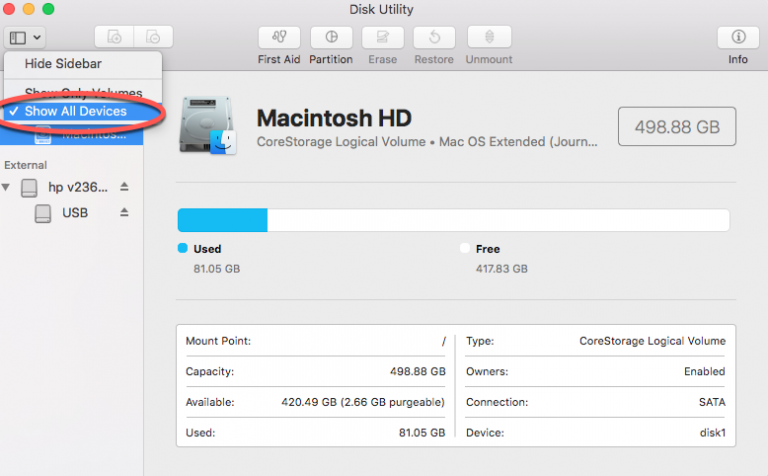
- Locate and select the physical disk containing the partitions you want to merge.
- Tap the Partition button from the top toolbar.
- Select the partition you want to remove and click the minus (-) icon.
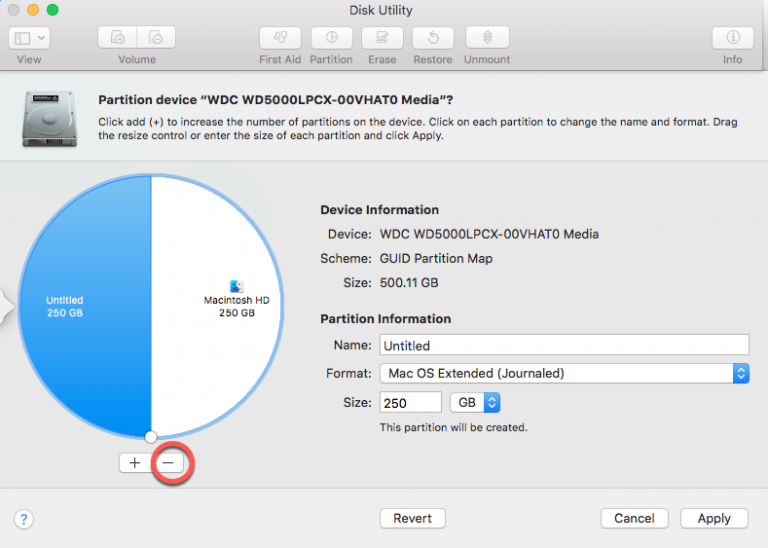
- Confirm the action after which Disk Utility prompts “This will delete the selected volume and the space will be added to the adjacent volume” message.
- Wait till the process completes. Once done, you’ll see a single, larger partition.
Note: This method of merging partitions comes with certain limitations, such as it doesn’t allow merging if:
- The drive uses APFS (some APFS containers act differently).
- The partitions contain Time Machine snapshots.
- There are additional hidden system volumes.
Method 02: Merge Partitions Using Terminal
If Disk Utility fails, you can use Terminal, another built-in macOS utility, to merge partitions using diskutil commands. All you have to do is:
- Go to Applications > Utilities and launch Terminal.
- Run diskutil list to identify the disk and partition identifiers.
- Remove or delete the unwanted partitions using diskutil eraseVolume free none diskXsY.
- Now, resize the main partition using the command: diskutil apfs resizeContainer disk0s2 0 (or the appropriate identifier).
- Once done, run diskutil list again to confirm that the main partition has been successfully enlarged.
Additional Tip: How to Recover Data Lost From Mac Partitions?
Though the aforementioned methods help merge partitions on Mac without losing data, sometimes you might encounter data loss issues. In such cases, you can use previously created backups or any third-party free Mac data recovery software to restore your lost files. Among several such recovery tools, the Stellar Data Recovery Free for Mac is a versatile tool, allowing easy and quick recovery of your deleted data from formatted, corrupted, or accidentally deleted Mac partitions.
- You can even use this free Mac data recovery software to restore files deleted due to partition-related issues, such as merging, resizing, deleting, or formatting volumes without a proper backup.
- The free version of this software supports recovery of lost data up to 1 GB for free. To recover files of a larger size, you can check and use the premium version.
- This software supports recovery of files from different storage devices like internal HDDs, SSDs, external drives, USBs, and even lost APFS or HFS+ partitions.
Here’s how to recover data deleted from Mac partition using this free Mac data recovery software:
Step 1: Download and install the Stellar Data Recovery Free for Mac software from its official website.
Tip: Install the tool on a different volume than the one where data is lost to avoid overwriting recoverable files.
Step 2: Launch the software and from the homepage, select the type of file you need to restore and click Next to continue.
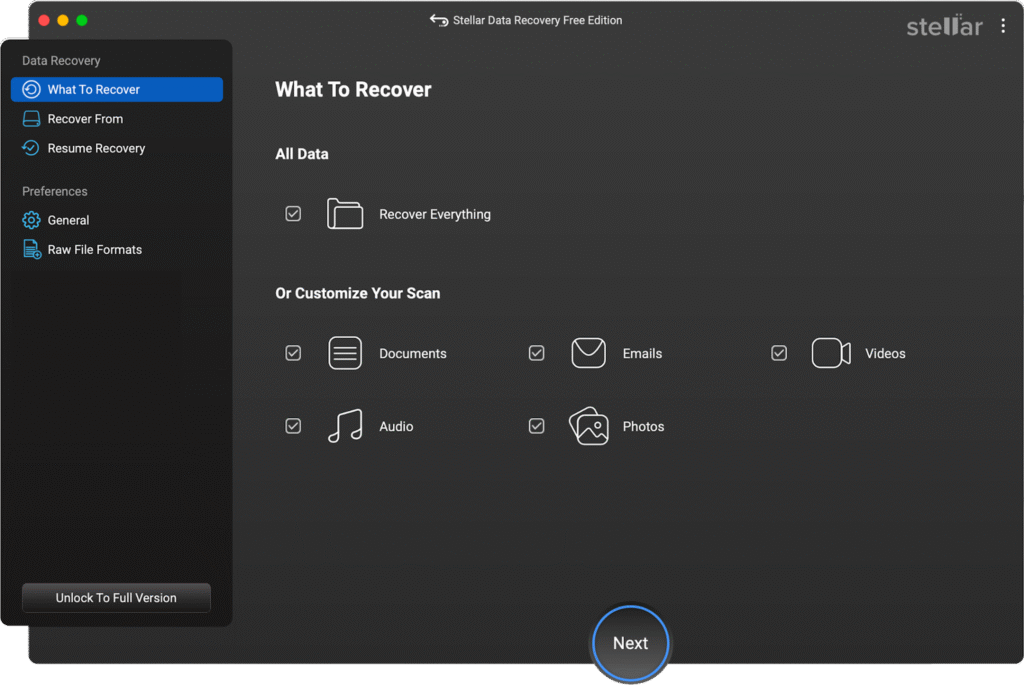
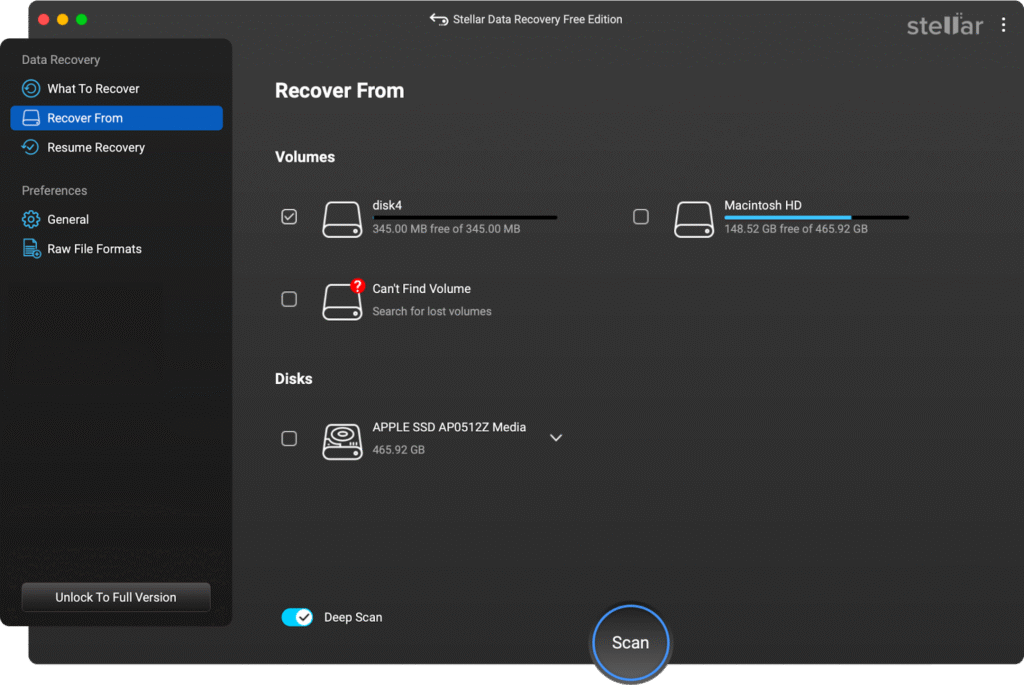
Step 3: From the list of storage devices, select the drive where the partition loss occurred. If the lost volume is not visible, click Can’t Find Volume and wait till the software searches for missing partitions. Toggle Deep Scan ON and click Scan to initiate the scanning process.
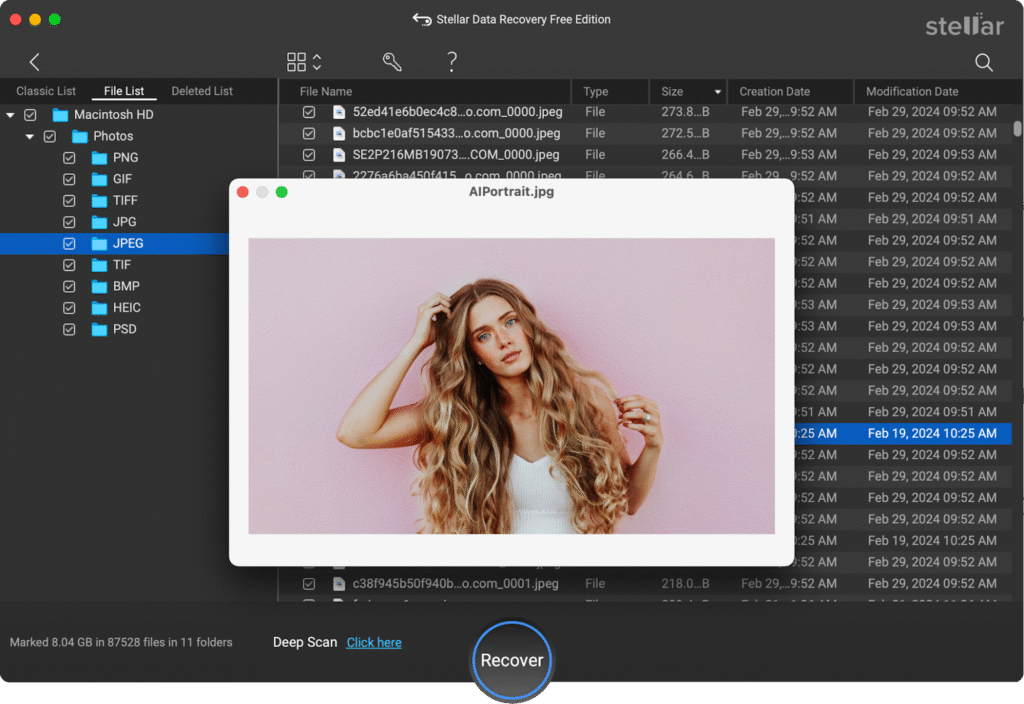
Step 4: After completion of the scan process, preview recoverable files, select the ones you need and click Recover to save the restored files to a different disk or external drive.
Conclusion
Merging partitions on Mac, that’s without data loss, can be challenging but not impossible at all. It requires careful planning and understanding of macOS disk management. You can begin the merging process by using macOS’ built-in Disk Utility and Terminal utilities. However, if somehow you find any file lost or deleted from the Mac partition during the merge process, try third-party free Mac data recovery software tools like Stellar Data Recovery Free for Mac to restore your lost data.
Whether you’re reorganising storage, removing extra partitions, or reclaiming wasted space, following the steps in this guide will help you merge partitions on Mac efficiently—without risking your data.